Install & Update
Prerequisites
It is recommended to install a user script manager in your browser:
- Tampermonkey
- Violentmonkey
- ScriptCat
Browser Permissions (for Chrome-based browsers)
Due to security policy updates in Chrome (e.g., Chrome 138+), you may need to enable "Developer Mode" or the "Allow User Scripts" toggle for the script to function correctly:
- Right-click the Tampermonkey icon and select "Manage Extension".
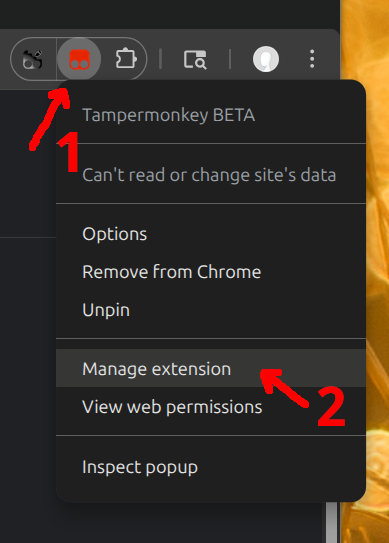
- Locate and enable the "Allow User Scripts" toggle.

- Alternatively: Navigate to
chrome://extensionsand enable "Developer Mode" in the top right corner.
For more details, see the Tampermonkey FAQ.
Installation
- Open the script installation page and confirm installation.
- After installation, refresh any webpage. Hover your mouse over an image to see the float bar.
- If you need PDF export functionality, install the PDF addon additionally (see Addons section).
Download Links
Updates
Your script manager will check for updates automatically. To update immediately, check for updates manually in your manager or reinstall the latest script.
Initial Configuration
- Open the script configuration interface and confirm the Float Bar is enabled.
- If the preview window does not follow the mouse, check the global shortcut settings.
- It is recommended to set up your preferred download method (ZIP or aria2) in advance.